

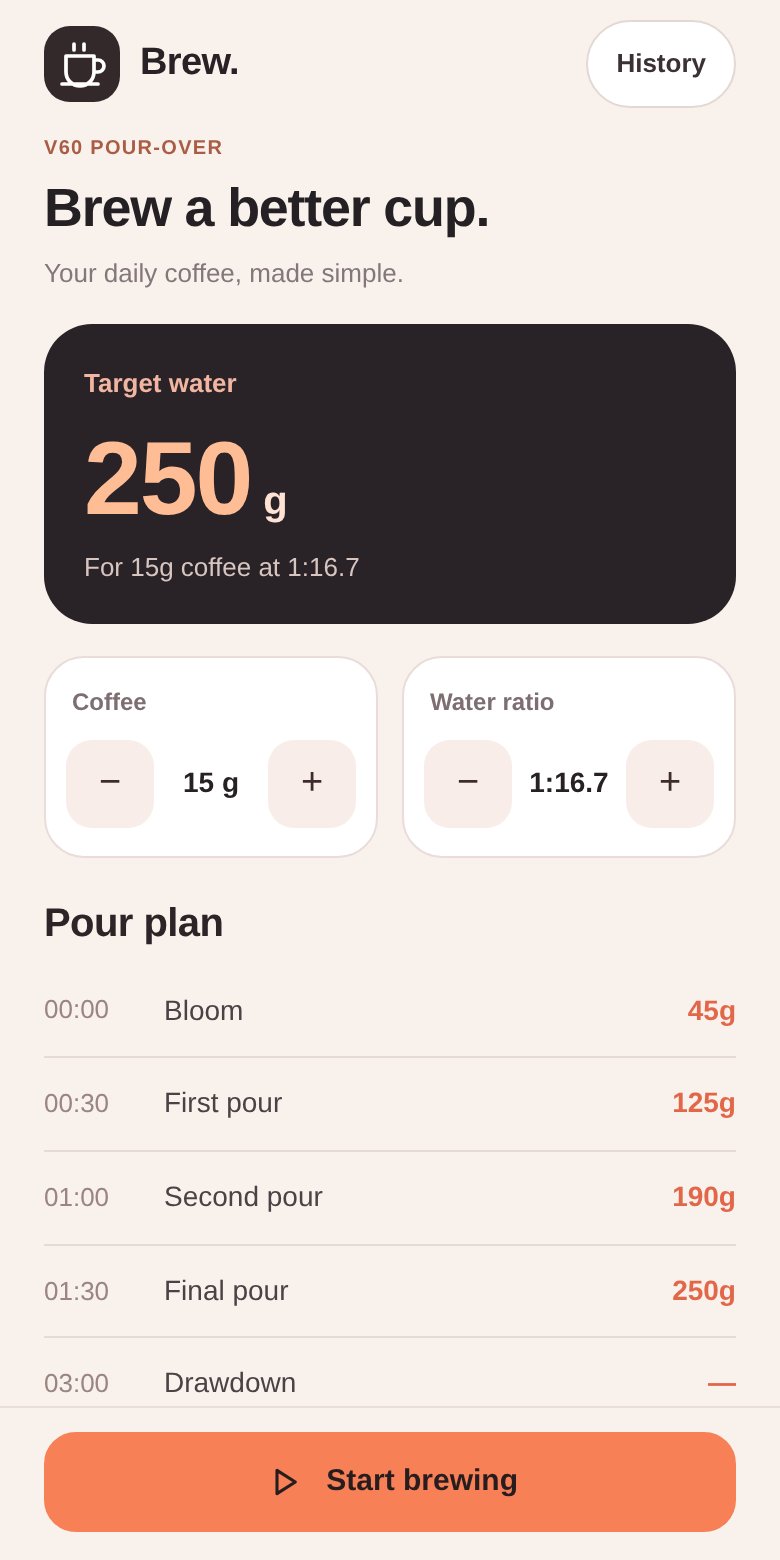
Brew
A little ritual.
Turn your AI-made HTML or ZIP into a personal app. Right on your phone.
From your favorite AI.
to the home screen of your phone.
Your AI made it. MakeTap makes it easy to use.
 MakeTap
Bring the HTML or ZIP your AI made.
From packing lists to coffee timers, useful tools for the moments that matter.
A little ritual.

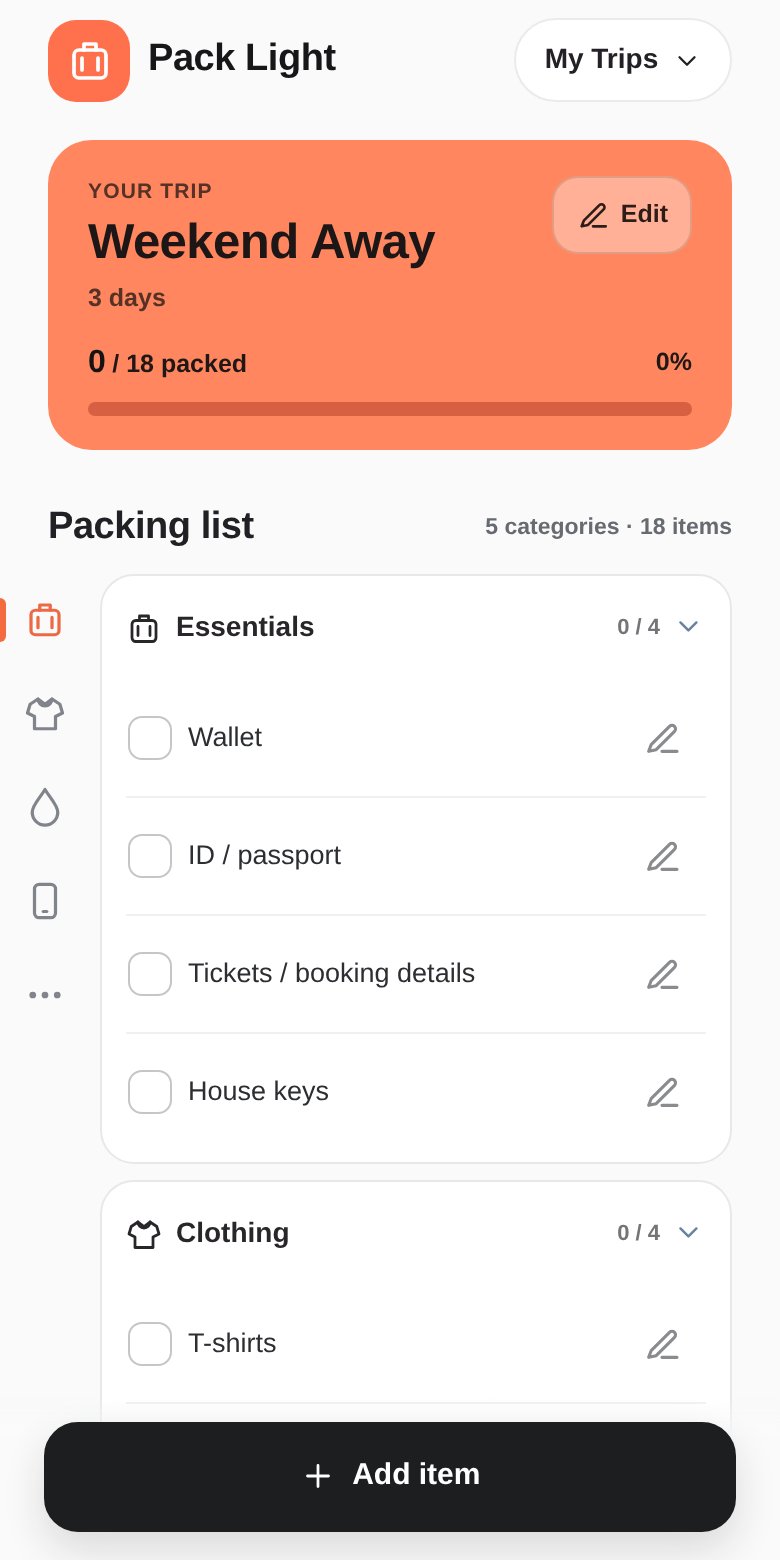
A place for everything.

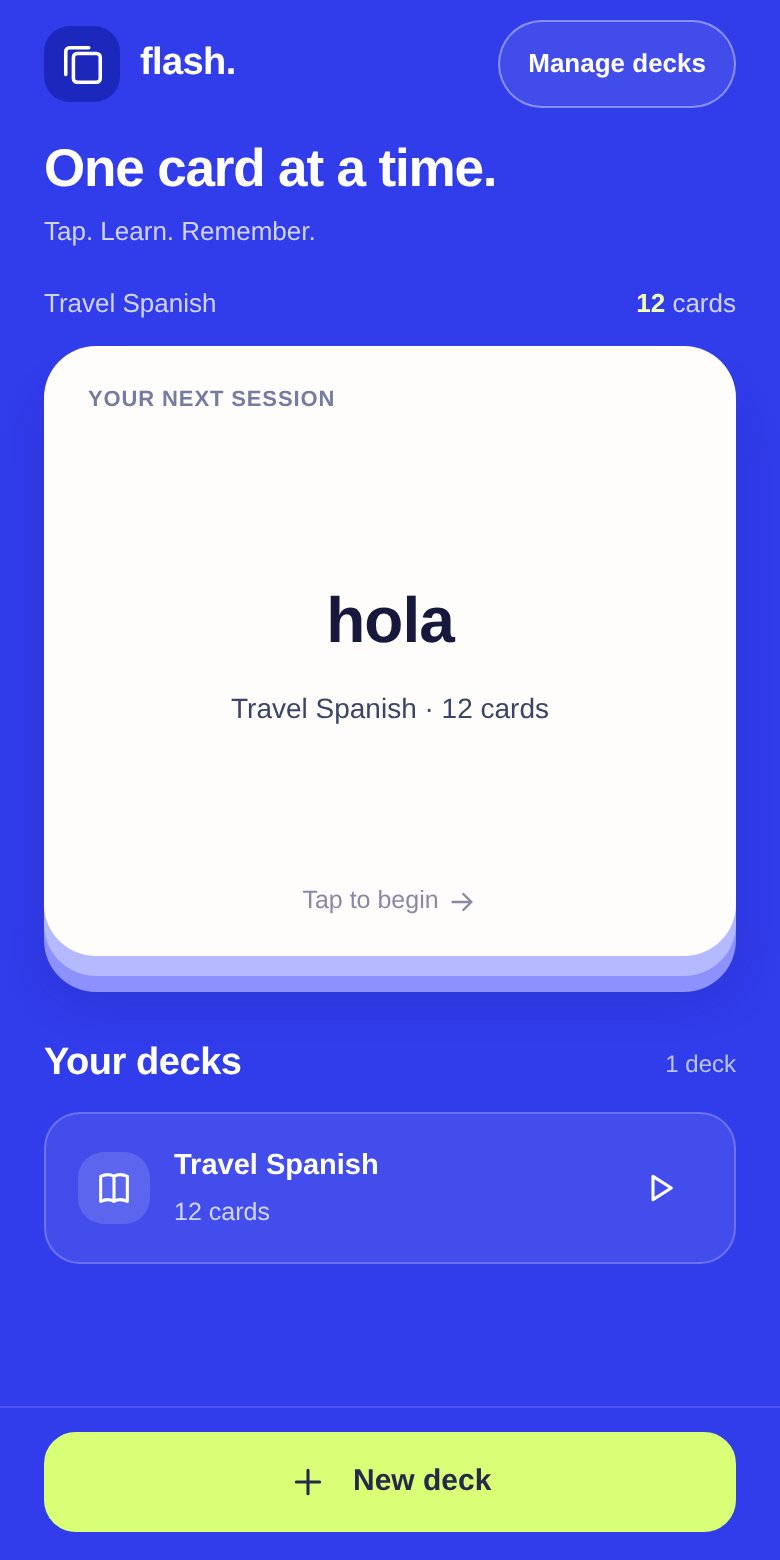
Make it stick.

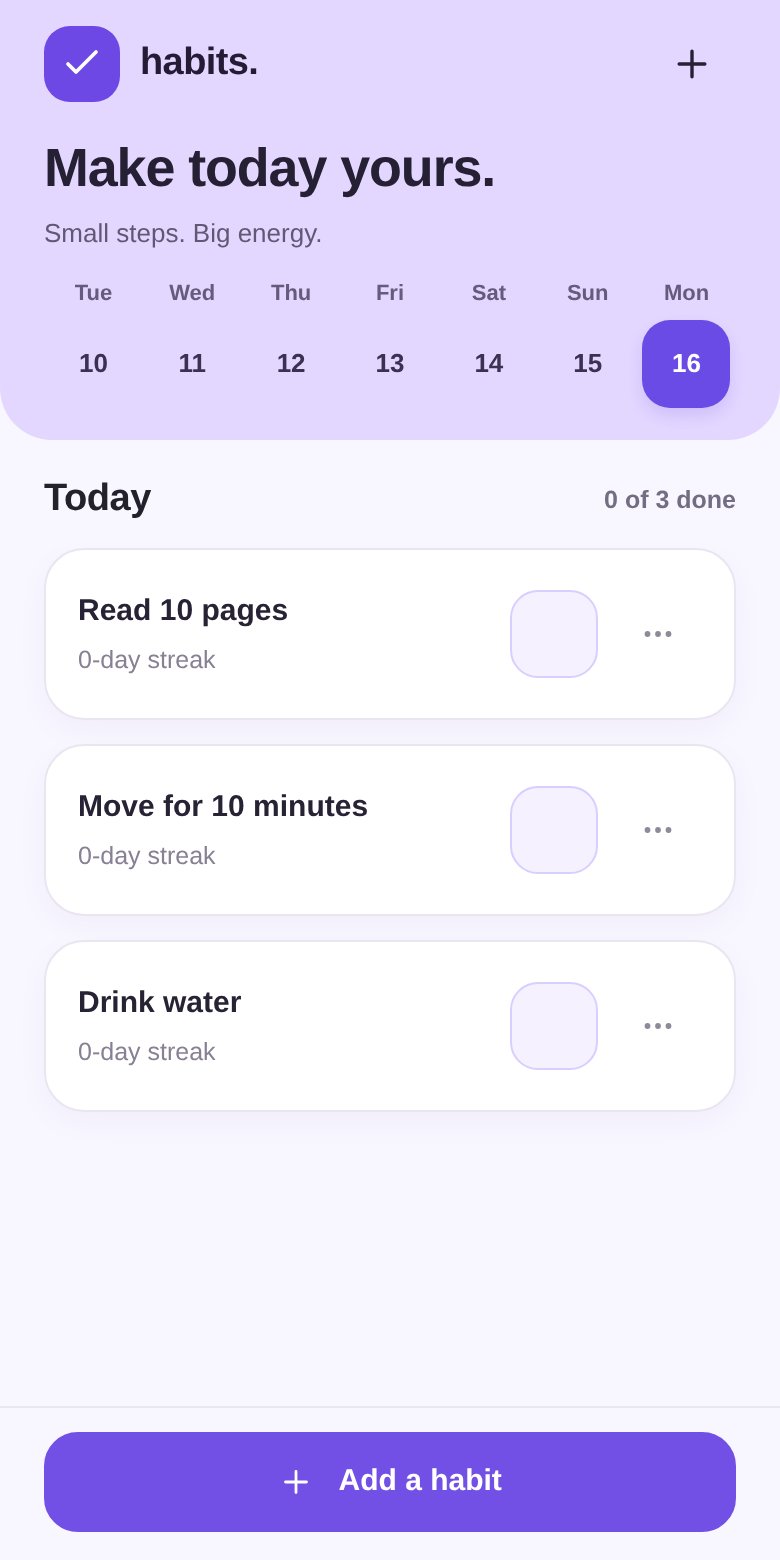
A little better, every day.

Good things, for later.

A little movement goes a long way.
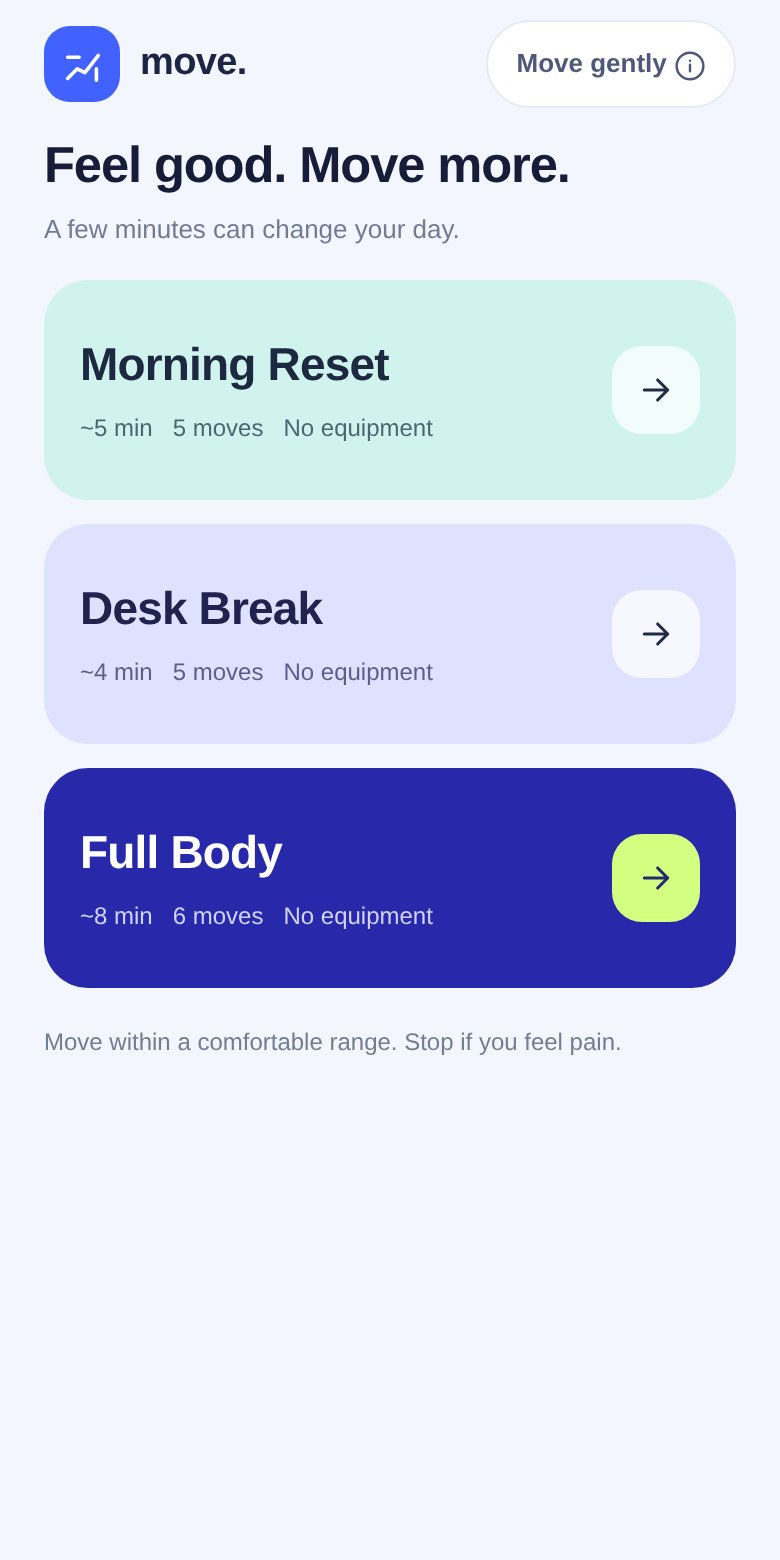
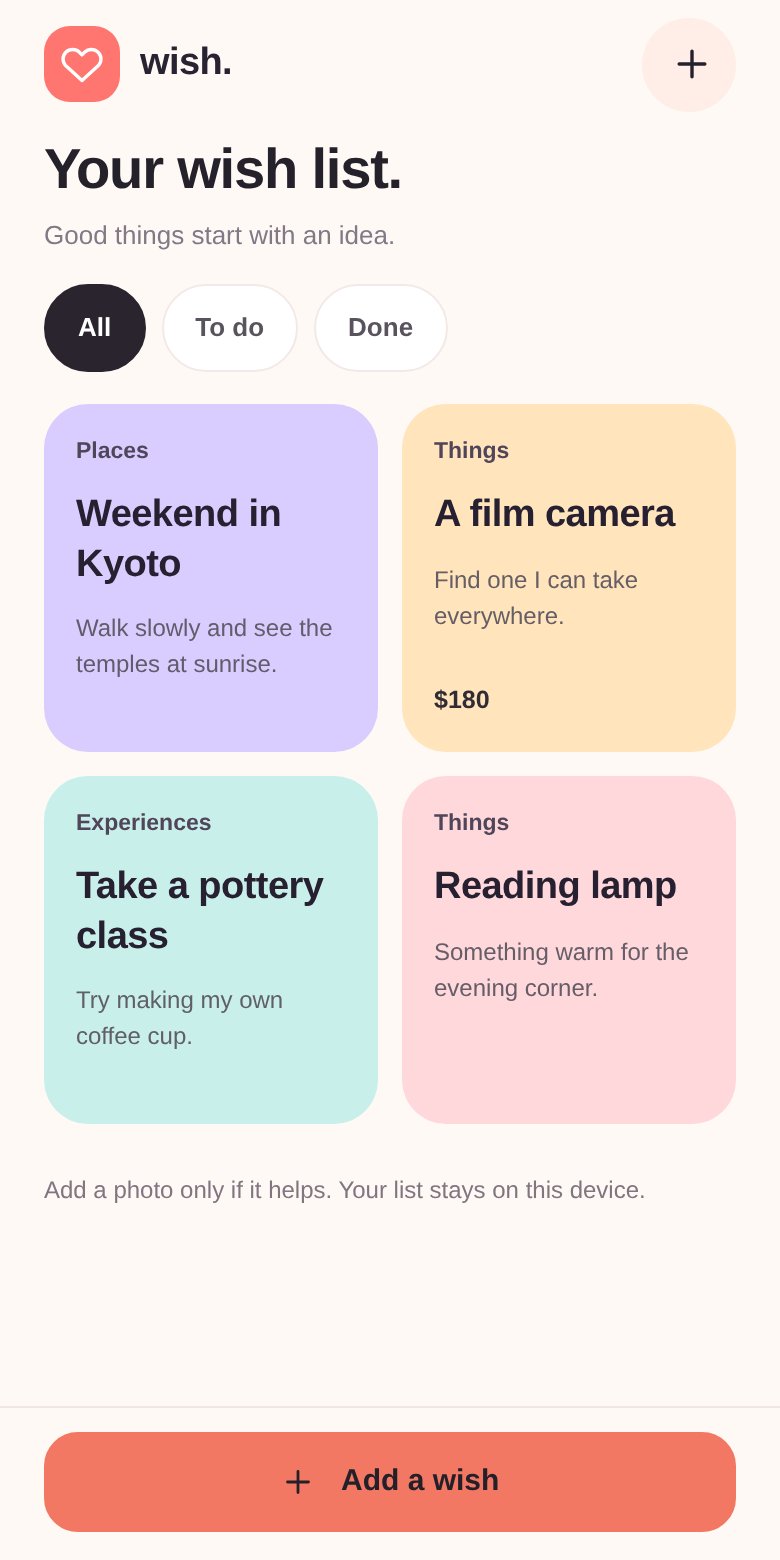
Try these working examples, then bring your own idea. Your app keeps its original design.
Your welcome gift
$0no credit card required
For a few more ideas
$5.99once · no auto-renewal
For your everyday ideas
$9.99/ month · auto-renews
Publishing uses 1–4 credits, depending on app size. Local editing and preview are free. Prices are USD product prices. Applicable tax, currency conversion and the final total are determined by Creem at checkout.
Made in your favorite AI. Made useful with MakeTap.
The little details, without the developer jargon.
No. Bring a complete HTML file or a finished static ZIP made with your AI tool. MakeTap lets you preview it, give it a name and icon, and set it up on your phone.
You can preview a single HTML file up to 2 MiB or a finished static ZIP up to 8 MiB. For private publication, Free supports up to 5 MB of app resources and paid plans up to 20 MB, at 1 credit per started 5 MB. Files must pass the installation checks before publishing.
Offline use depends on the app’s saved files, cache and external dependencies. Cloud-link expiry does not remotely uninstall a local app, but it can prevent downloads or repairs. Keep your own source backup.
Yes. Edit and save locally for free. A Free publication includes 1 replacement within 24 hours; paid publications include 2 within 48 hours. Larger files may need extra credits. Replacements do not extend link expiry; later updates need a new size-based publication.
Your app stays local until you explicitly prepare a private installation. Setup files are temporarily stored for your plan's installation window; saved app data remains on your device. There is no permanent cloud backup.
MakeTap is a personal app installer. Setup links are for the app owner, not public sharing. Hosted sites and custom domains are not available.
Connect MakeTap to a compatible AI tool using the MCP guide in Help Center. Send an HTML or ZIP app as a private draft, then open it in My Apps to preview. Creating a draft or updating its code uses one import. Previewing is free. Free includes no MCP imports. Each purchased Creator Pack or redeemed Gift Pack adds 50 imports, and packs stack. Maker Pro includes 200 imports per paid period, with no rollover.
Local browser storage can be cleared. Export a backup of anything important.
Turn an AI-made tool into an App you can open from your home screen. Start here, or jump to the step you need.
MakeTap installs the tool you bring. It does not generate an App for you. Start with a small offline tool, such as a timer or checklist.
Ask for one self-contained HTML file, or a built static ZIP with all its files. A chat link, project source folder or screenshot is not an installable App.
Choose Make your first app. Paste the HTML or upload the HTML / ZIP, then choose Preview. Try its main buttons and save a small test entry. A preview is not a guarantee that installation will pass its separate checks.
Choose Looks good, give it a name and icon, and Save. It now appears in My apps in this browser. Saving here does not add a home-screen icon yet.
Choose Set up on my phone and review the upload details. Confirm only when you are ready to temporarily upload the App files, name and icon. Follow the phone instructions below.
Copy this request into the AI conversation where you are making your tool. Replace the first sentence with your idea.
Make me a simple offline checklist for my phone. Return one complete HTML file under 2 MiB with doctype, html, head and body. Put all JavaScript, styles, images and fonts in that file. Use localStorage for small saved values. Do not use a server, external requests, online libraries, IndexedDB, service workers, embedded pages or redirects. If a feature needs an online service, explain it and suggest an offline alternative. Keep the layout usable on a narrow phone screen.
No file yet? Try an example from the homepage first. Public example Apps have their own installation flow; they do not prove that every imported App will work.
Back to guide contentsOpen the private setup page on the phone where you want the App. If you started on a computer, use the phone handoff shown by MakeTap. Follow any device or account verification requested by the setup page; the link is not a public sharing link.
Offline use depends on a compatible App and files saved successfully on this device. Clearing website data, removing an installed App or device storage cleanup can remove its files or data. Keep backups.
MakeTap runs its website and Studio at maketap.app. Private installation links and app files are served from maketap.link.
Back to guide contentsEdit the original App in My apps instead of creating another one. If you import a backup with the same identity, review it carefully: saving can replace that existing local project.
Export a full backup from each copy with data you want to keep. The website and the installed App have separate data.
Choose Edit on the original App, replace its HTML or ZIP, and test it. Ask your AI to keep existing localStorage keys and data compatible. A code change can make old saved data unreadable.
Save the same App, then prepare its installation again while access is available. Saving in My apps only updates the browser’s local project.
Open the installed App online to receive the available update, then reopen it and check the version and your data. Test offline again. Do not delete the original icon as a troubleshooting shortcut.
Free includes 1 replacement within 24 hours; paid publication includes 2 within 48 hours. Within that window, a larger size tier charges only the extra credits. It does not restart the window, restore replacement count or extend hosting. After the window or count is used, a new publication costs the full size-based credits.
Back to guide contentsKeep a copy outside the browser before updating, switching devices or clearing storage. MakeTap does not provide permanent cloud backup or automatic data sync.
Download HTML / ZIP gives you the source file only. An App-only package (.maketap.json) also preserves its MakeTap name, icon and identity. Neither includes saved runtime data.
A full backup (.backup.json) includes the package and supported data saved in this website browser. Import it from My apps and review before saving. A matching identity can update the existing local project; otherwise you save a local copy. It does not automatically restore phone setup access or sync another device.
Open MakeTap backup & restore inside the installed App and download a backup there. That copy’s data may differ from the website. Restore requires the same App, source version and format; review the confirmation and keep the old backup. Restoring replaces this copy’s supported saved data, not its code. For a different version, import the backup into MakeTap for review instead.
Newer private installations use the transparent corner control shown below. If your copy instead shows App options, open it there. Public example Apps use a different control and are not covered by this diagram.
In your privately installed App, tap the transparent 44 × 44 px button in the top-right corner to open MakeTap backup & restore. This small area receives taps instead of passing them to the App below.
In that panel, choose Button position to move it to any of the eight positions around the edge, even offline. The position is saved for this App on this device; no reinstall is needed.
Choose Show position to locate the button. The highlighted spot shows the default position. Outlines are shown here only to explain the normally transparent button.
Older installed copies may need to open online and then reopen to receive this control. Updates require available installation access; offline copies do not update themselves.
Store backups somewhere you trust. They contain your App and may contain personal data. Anything written directly into the source is also included when you export it or confirm temporary installation upload.
Send an app from your AI chat to a private MakeTap draft.
On mobile or in ChatGPT Work, you can also select MakeTap if it appears in your tools menu.
Open ChatGPTMakeTap support for this client is pending. Its sign-in and draft import flow have not yet been verified.
MakeTap support for this client is pending. Its sign-in and draft import flow have not yet been verified.
MakeTap support for this client is pending. Its sign-in and draft import flow have not yet been verified.
MakeTap support for this client is pending. Its sign-in and draft import flow have not yet been verified.
MakeTap support for this client is pending. Its sign-in and draft import flow have not yet been verified.
MakeTap support for this client is pending. Its sign-in and draft import flow have not yet been verified.
MakeTap support for this client is pending. Its sign-in and draft import flow have not yet been verified.
MakeTap support for this client is pending. Its sign-in and draft import flow have not yet been verified.
MakeTap support for this client is pending. Its sign-in and draft import flow have not yet been verified.
After signing in, ask “What are the requirements for a MakeTap app?” to check the connection without using an import.
If MakeTap cannot authorize your client, use ChatGPT on the web or upload your HTML or ZIP in MakeTap Studio.
Each HTML or static ZIP can be up to 20 MiB. Custom PNG icons and editing an existing draft depend on the tools available in your ChatGPT connection. If an icon is unavailable, you can choose one in Studio.
A draft expires 30 days after creation or the last saved change. Opening a preview does not extend it.
Free has no MCP imports. Each purchased Creator Pack or redeemed Gift Pack adds 10 publishing credits and 50 MCP imports. Packs stack. Maker Pro includes 200 per paid period, resetting each period with no rollover. Check your balance in My Apps.
Creating a draft or saving changed code uses one import. Previewing, renaming, changing an icon, failed imports and retrying the same request use no additional imports. Publishing credits are separate.
Back to guide contentsSee the plans above for prices and publishing limits. Payment options are shown in your account. Credits are added only after a successful payment is confirmed.
Free gives one welcome credit per account, valid for 30 days from issue. No credit card required. Creator Pack is $5.99 one-time for 10 credits, valid for 90 days from each successful purchase. Maker Pro is $9.99 per month with 20 credits in each actual paid billing period and no rollover. Pack purchases remain independent. Free includes no MCP imports. Each purchased Creator Pack or redeemed Gift Pack adds 50 imports, and packs stack. Maker Pro includes 200 imports per paid period, with no rollover.
Cloud publication uses 1 credit for each started 5,000,000 bytes, up to 20,000,000 bytes per release; Free is limited to 5,000,000 bytes. The server measures the actual package and spends the earliest-expiring eligible credits first. Deleting a project or signing in does not restore spent credits.
Free private links last 24 hours. Creator Pack links last 7 days. Maker Pro links remain active during the paid service period, followed by 7 read-only days after service ends. Credit expiry and link expiry are separate. Renewing Pro does not automatically extend an old Pack link.
Free includes 1 replacement within 24 hours; paid publication includes 2 within 48 hours. Within that window, a larger size tier charges only the extra credits. It does not restart the window, restore replacement count or extend hosting. After the window or count is used, a new publication costs the full size-based credits.
Each Pack purchase has its own 90-day expiry. Upgrading, renewing or ending Pro never resets a Pack expiry. Active Pro can use valid Pack credits with Pro hosting, within 500 MB. Old Pack links only convert through an explicit Keep online with Pro action while still valid; buying another Pack does not add Pro storage.
Install on your own devices with the same owner account. There is no device-count charge. Opening or reinstalling through a valid private link does not use more credits or extend the link.
After access expires, downloading or repairing a missing package may be unavailable. A complete installed copy can continue offline, subject to device storage and App compatibility. Expiry does not make local storage a permanent backup.
Back to guide contentsKeep the original file and any backup before trying fixes. Start with the matching symptom below.
Check the file limits above. For ZIP, ask for the built static export with index.html and all referenced files, not the original development project. If MakeTap offers a repair request, copy it into the AI chat that made the App and add the original file yourself if needed. Do not just rename an unsupported file to .html or .zip.
Check for missing files, online dependencies and unsupported browser features. Try Open app to inspect the real preview separately. Ask the AI for an offline alternative if the tool needs a server or live data. A successful static check does not verify every button or saved value.
Open the setup page in Safari on iPhone or Chrome on Android, outside any in-app browser. Check the browser’s Share or main menu. Confirm that you are on the setup page, not a screenshot, chat link or MakeTap’s preview dialog. Some managed devices restrict installation.
Reconnect and open the installed icon itself. Wait for offline-ready confirmation, then close and reopen before testing offline again. Do this while installation access is available. If files were cleared after expiry, do not assume the icon can recover them; keep your original source and backups.
Follow the device/account instructions on that page. If it asks you to sign in, use the account associated with this App. Do not share the private link or verification code. Signing in again cannot extend an expired window or create more slots. Check the current App’s setup status in My apps.
The website, another browser, another device and a home-screen App do not share one data store. Look in the copy where you entered the data. Clearing storage can remove it. If you have a compatible backup, restore it in the intended copy after checking the replacement warning. Without a backup, MakeTap cannot promise recovery.
Use a MakeTap backup file, not an App-only export. An installed App only restores matching App data, not another App’s source or identity. Keep the file unchanged and read the specific error. You can import the full backup into My apps to review its code and data; check whether saving will replace an existing project. Never clear the existing data first.
Still stuck? Keep the exact error text, device/browser version and the step where it happened. Share a harmless sample rather than private source, saved data, setup links or verification codes when asking for help.
Contact MakeTap · Acceptable use in the Terms
Back to guide contentsChinese interface text uses MiSans by Xiaomi. English headings use Space Grotesk; interface text uses Geist. MiSans is embedded for this website under its licence.
MiSans licence and embedding guidance