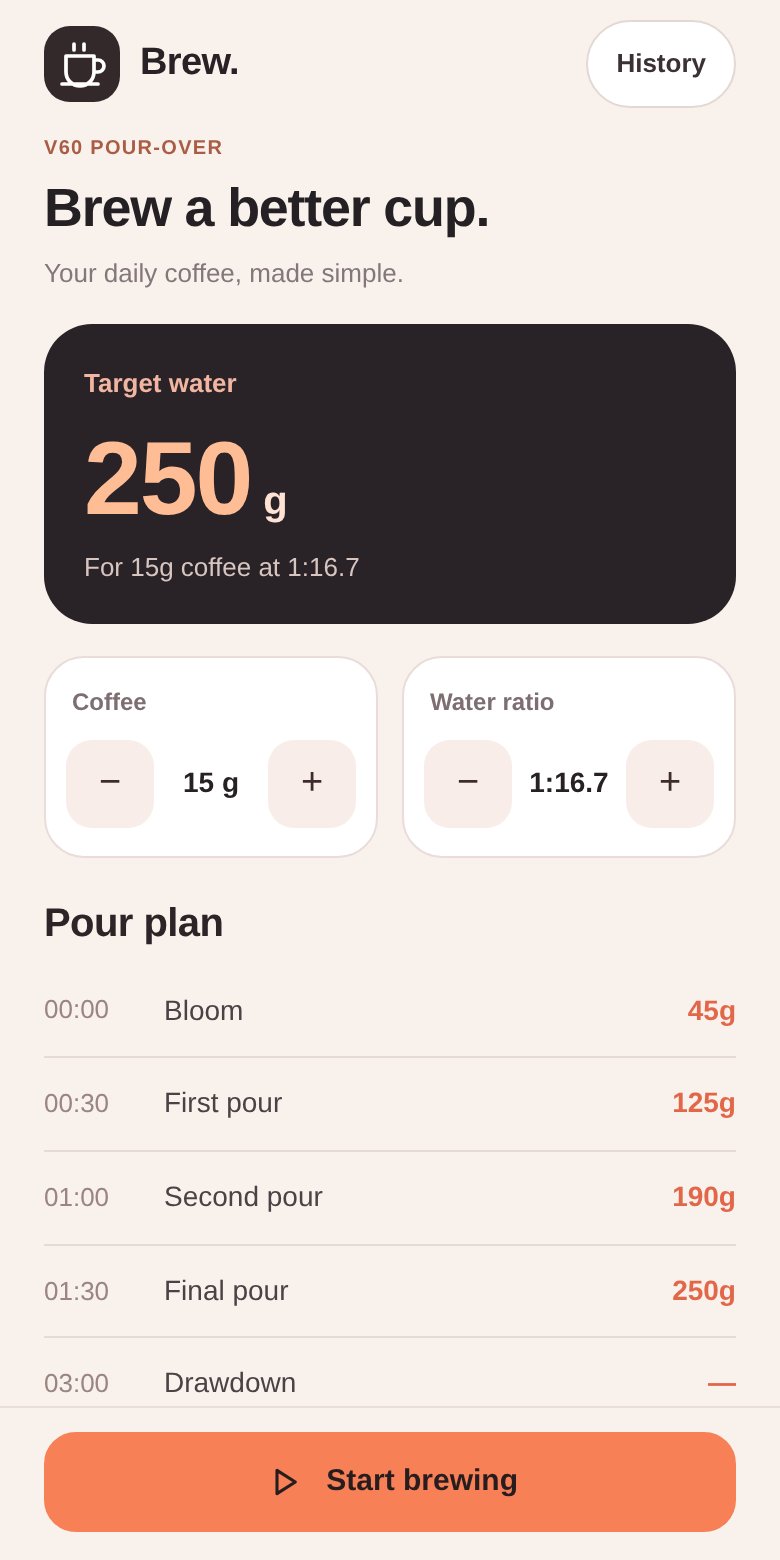
From ChatGPT to your phone
Ask for a complete file
Describe your app and request a single HTML document with inline CSS and JavaScript. Use the packing-checklist prompt below as a starting point; code and file actions vary by plan and device.
Copy or save the HTML
If a code block is available, copy the full HTML code, not just its rendered preview. If ChatGPT supplies a downloadable HTML file, save it. Check that the file opens and includes the entire document. If the output is a React fragment or a multi-file build project, ask for a self-contained HTML version instead.
OPTIONAL · MCPAlready connected to MakeTap?Instead of copying HTML, send your app directly from ChatGPT to a private MakeTap draft. Requires an eligible connection, sign-in and available MCP imports. A draft is not yet an installed app.
Set up MakeTap in ChatGPTBring the file to MakeTap
Open MakeTap and use its HTML paste or file import flow. For a ZIP, include the app's entry HTML and all supported local assets. Do not upload confidential code or files you do not have rights to use.
Preview and customize
Check the buttons, inputs and layout locally. Set the app name and icon. If the preview fails, ask your AI to remove unsupported dependencies; do not assume a working AI preview guarantees compatibility.
Publish privately and install
Sign in, review the publishing quote and confirm only if you accept the credit usage. Follow MakeTap's owner-only installation link and its device-specific instructions. Installation setup and first loading require connectivity.
A prompt for your first app
Use this as a starting point and adapt the task. AI output still needs to be checked.
Create a mobile-first personal packing checklist as one complete HTML file. Include all CSS and JavaScript inline, large touch targets, working checkboxes, a clear checked-item count and a reset button. Do not use external libraries, fonts, CDNs, network requests, API keys, a backend, service workers or native-device permissions. The checklist should run with no internet after loading. Return the complete HTML code, starting with <!doctype html>, or a downloadable index.html file. Do not return a code fragment.
Download a small practice HTML file — a MakeTap editorial example, not an export or installation receipt from ChatGPT.
Install on an iPhone
Open the authorized installation page in Safari on your iPhone. From Safari’s sharing controls, select Add to Home Screen. Where your iOS version shows Open as Web App, keep it enabled. Confirm the icon and open it from the Home Screen. Menu labels can differ by iOS version; follow the MakeTap guide and Apple’s current instructions.
If you see a blank app
Confirm that the HTML includes the JavaScript needed to run. Ask ChatGPT to remove remote scripts, assets and server calls and return a complete file. Check the same controls in MakeTap's local preview before publishing.
Another route: a supported MakeTap connection
If your AI environment offers an authorized MakeTap connection, it may be able to create a private draft directly. Availability depends on the connection and account; this guide works from HTML instead. The connection does not automatically install an app on your phone.
Common questions
Do I need to export from Canvas?
No. Copy the complete HTML from a code block or use a downloadable file if available. ChatGPT's current UI varies by device and plan.
Is it a native iPhone app?
It is a web app that can be opened from your Home Screen, not an App Store package.
Will it work offline?
A self-contained app can perform local tasks without a network once the required resources have loaded and are available offline. Publishing, authentication, downloading and first setup need connectivity. Apps that depend on hosted AI, remote storage or APIs are not automatically offline. Browser storage may be cleared or evicted; keep backups of important files.
Official references
Documentation checked 25 November 2026. Actual UI and available actions can vary by device, version and plan.