From Claude to your phone
Identify the artifact you have
Check whether your artifact is a simple interactive webpage or relies on Claude-hosted AI, connected apps, storage or server-side services. A link to a hosted artifact is not the same as an exportable app file.
Get a standalone HTML version
Claude’s current export options depend on artifact type. A Design artifact may offer standalone HTML or ZIP; older code artifacts can provide code-view, copy or download controls. For other outputs, ask Claude in chat to rewrite the tool as one complete HTML file without hosted services. Do not assume every artifact has a Download HTML button.
Bring the file to MakeTap
Open MakeTap and use its HTML paste or file import flow. For a ZIP, include the app's entry HTML and all supported local assets. Do not upload confidential code or files you do not have rights to use.
Preview and customize
Check the buttons, inputs and layout locally. Set the app name and icon. If the preview fails, ask your AI to remove unsupported dependencies; do not assume a working AI preview guarantees compatibility.
Publish privately and install
Sign in, review the publishing quote and confirm only if you accept the credit usage. Follow MakeTap's owner-only installation link and its device-specific instructions. Installation setup and first loading require connectivity.
A prompt for your first app
Use this as a starting point and adapt the task. AI output still needs to be checked.
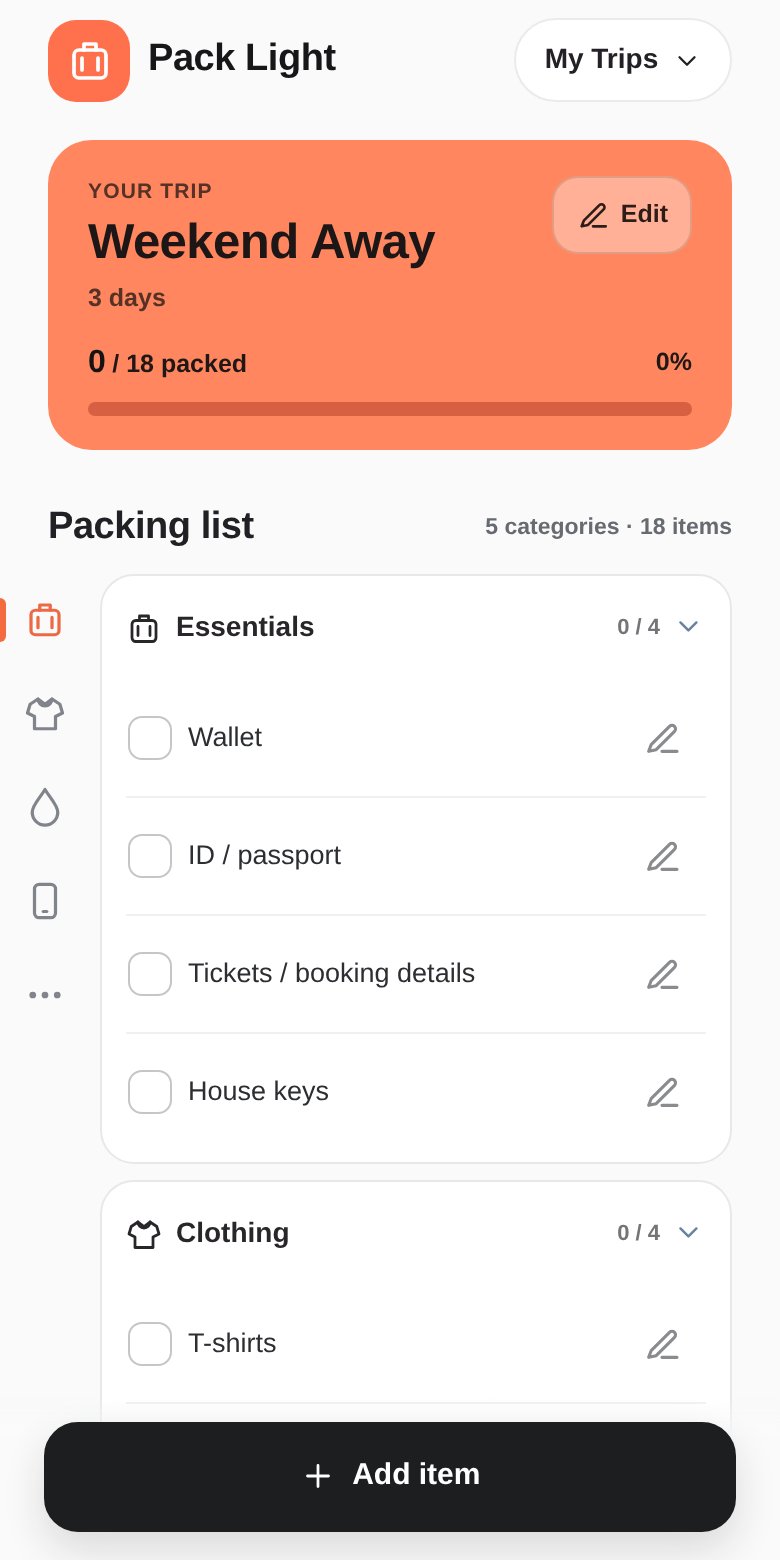
Rewrite my artifact, or create a mobile-first personal packing checklist as one complete HTML file. Include all CSS and JavaScript inline, large touch targets, working checkboxes, a clear checked-item count and a reset button. Do not use external libraries, fonts, CDNs, network requests, API keys, a backend, service workers or native-device permissions. The checklist should run with no internet after loading. Return the complete HTML code, starting with <!doctype html>, or a downloadable index.html file. Do not return a code fragment.
Download a small practice HTML file — a MakeTap editorial example, not an export or installation receipt from Claude.
What if the artifact uses Claude itself?
Claude-powered artifacts can call Claude through Anthropic’s infrastructure. Copying their source does not carry that runtime, authentication or connected services into MakeTap. For offline use, ask for a version where the key task runs locally, or keep using the original hosted artifact.
Install on an iPhone
Open the authorized installation page in Safari on your iPhone. From Safari’s sharing controls, select Add to Home Screen. Where your iOS version shows Open as Web App, keep it enabled. Confirm the icon and open it from the Home Screen. Menu labels can differ by iOS version; follow the MakeTap guide and Apple’s current instructions.
Install on Android
Open the authorized installation page in a supported browser such as Chrome. Use the browser’s install or home-screen option as offered, then follow the device prompts. A shortcut is not necessarily a fully installed web app. Confirm the new icon actually launches your app; browser and manufacturer behavior can differ.
Common questions
Do I need to make my Claude artifact public?
No. Use your own authorized source/export; a public share link is not required.
Can I install a Claude document or presentation?
Only if you have a compatible functional web app export. A PDF, slide deck or document is not automatically an installable HTML app.
Can I use Claude's AI features offline?
A self-contained app can perform local tasks without a network once the required resources have loaded and are available offline. Publishing, authentication, downloading and first setup need connectivity. Apps that depend on hosted AI, remote storage or APIs are not automatically offline. Browser storage may be cleared or evicted; keep backups of important files.
Official references
- Claude artifact types and export options
- Apple's web app installation guide
- Google Chrome web apps on Android
Documentation checked 25 November 2026. Actual UI and available actions can vary by device, version and plan.